_a91101.png)
_30c74e.png)
_d1f568.png)
_f3c42d.png)
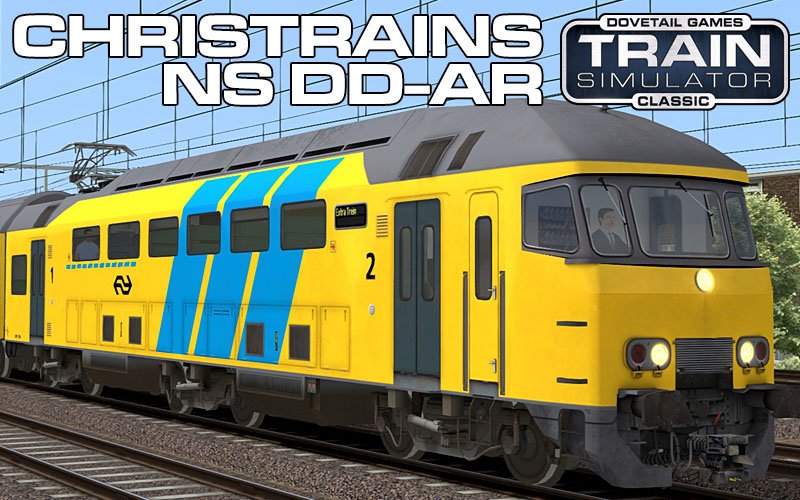
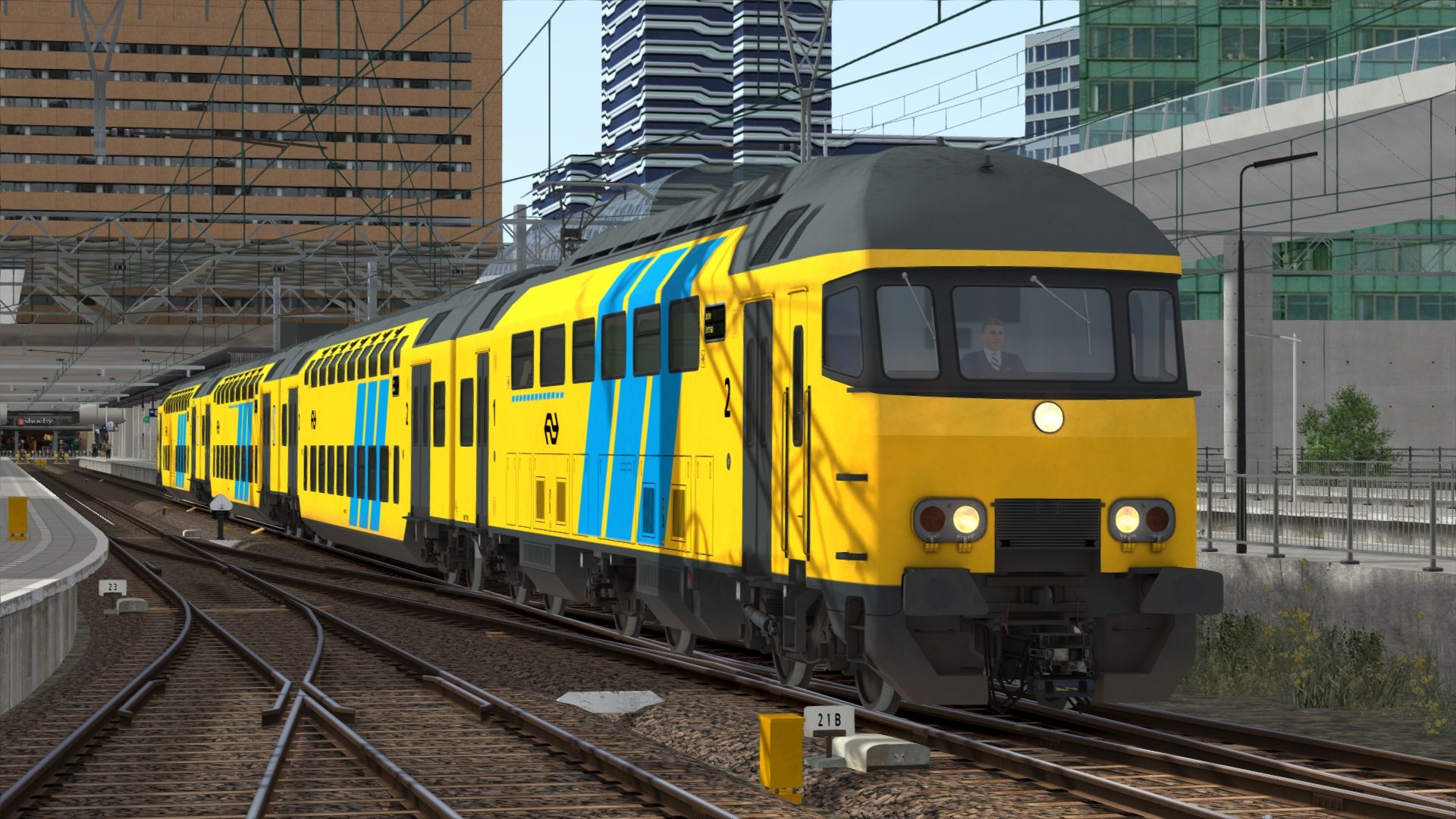
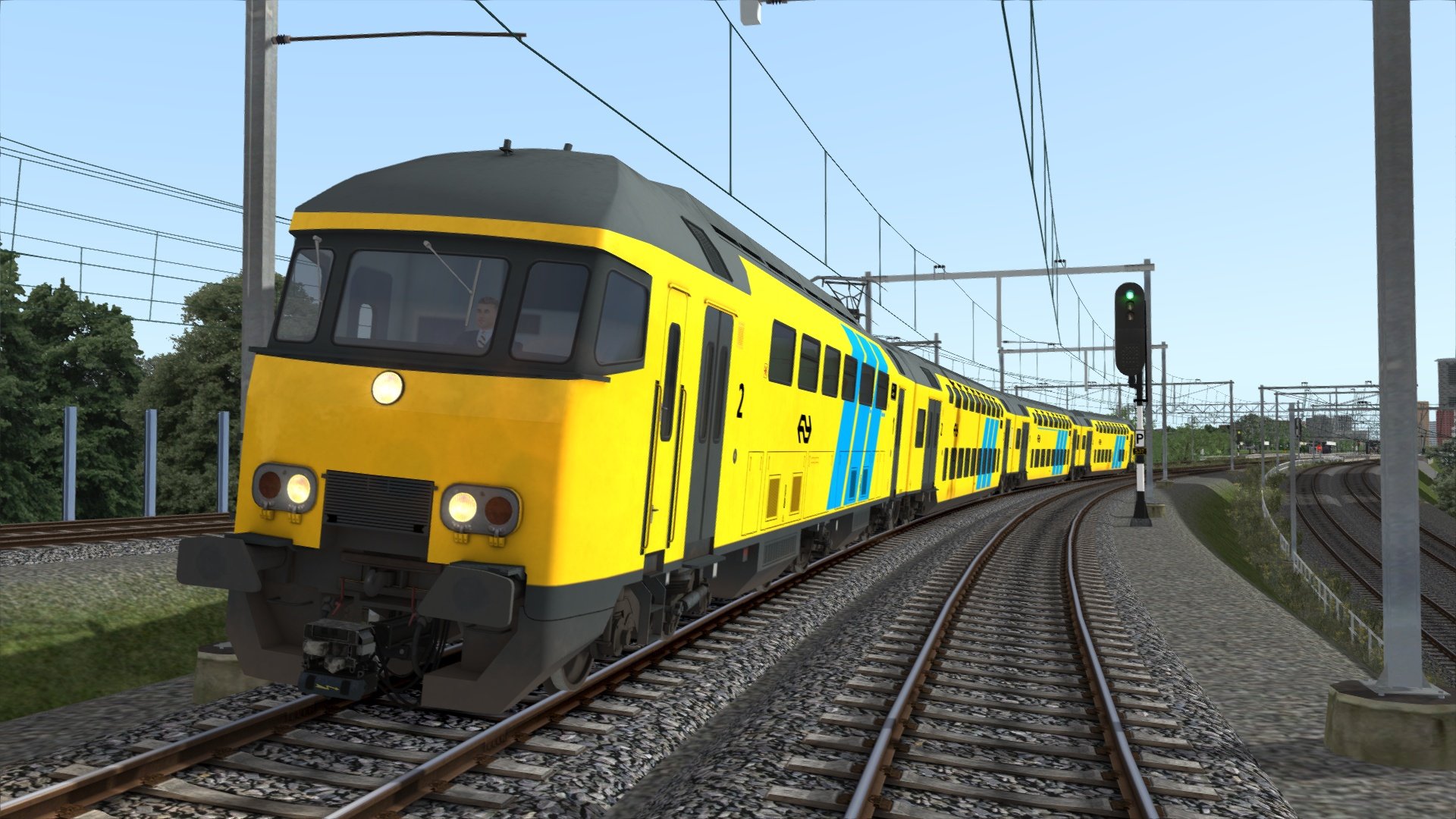
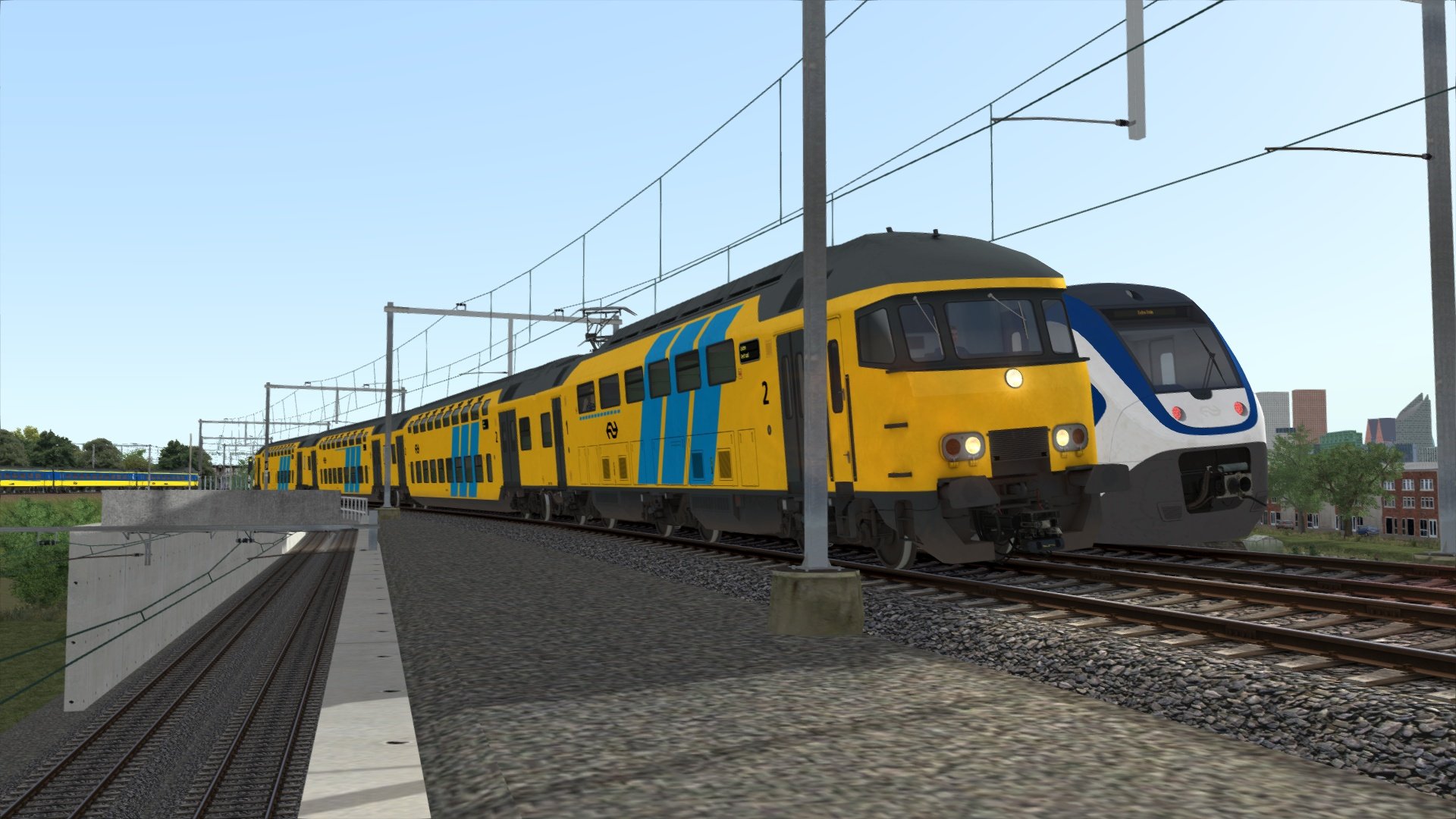
ChrisTrains: DD-AR
Productinformatie "DD-AR Passagierstrein"
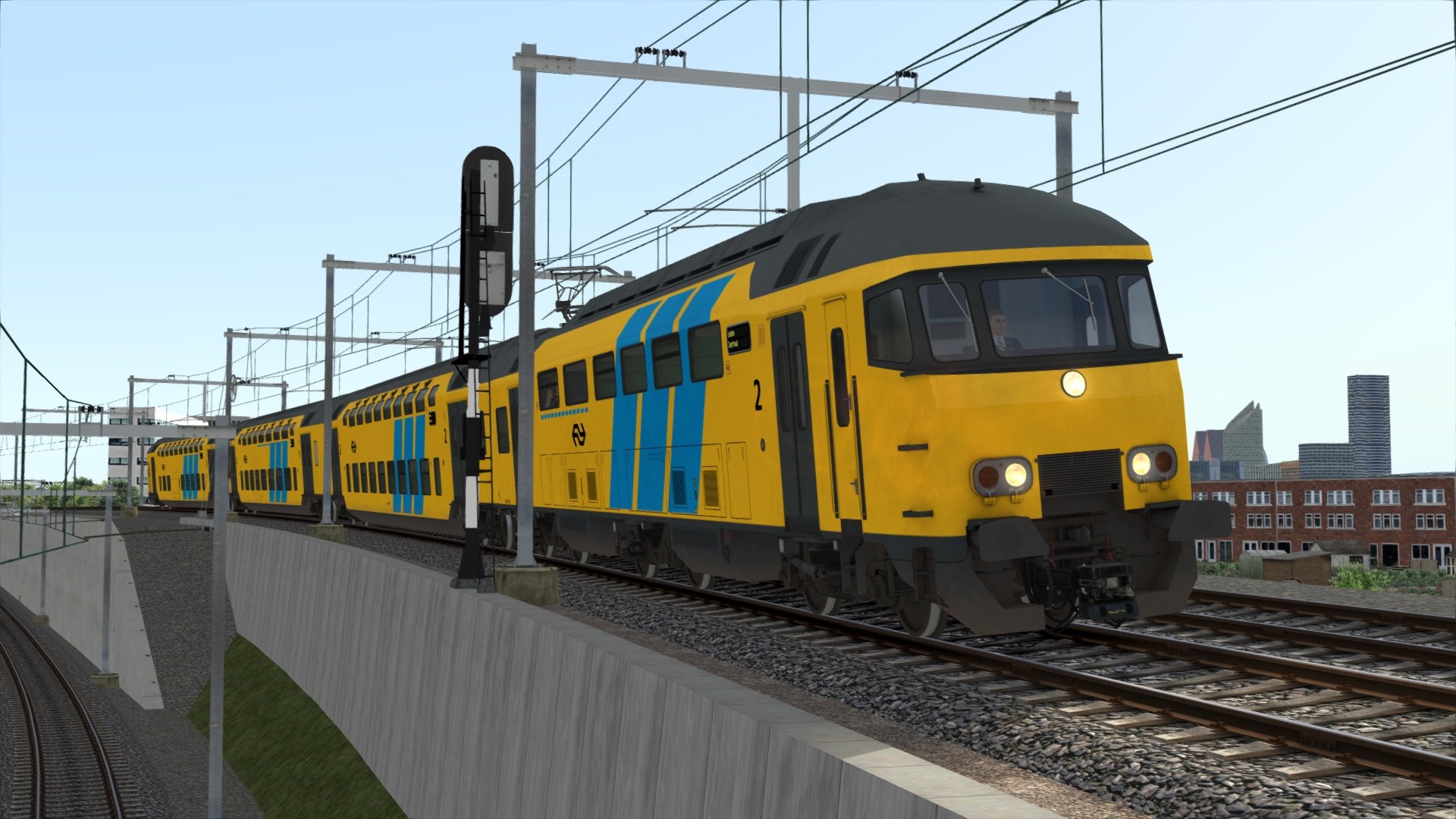
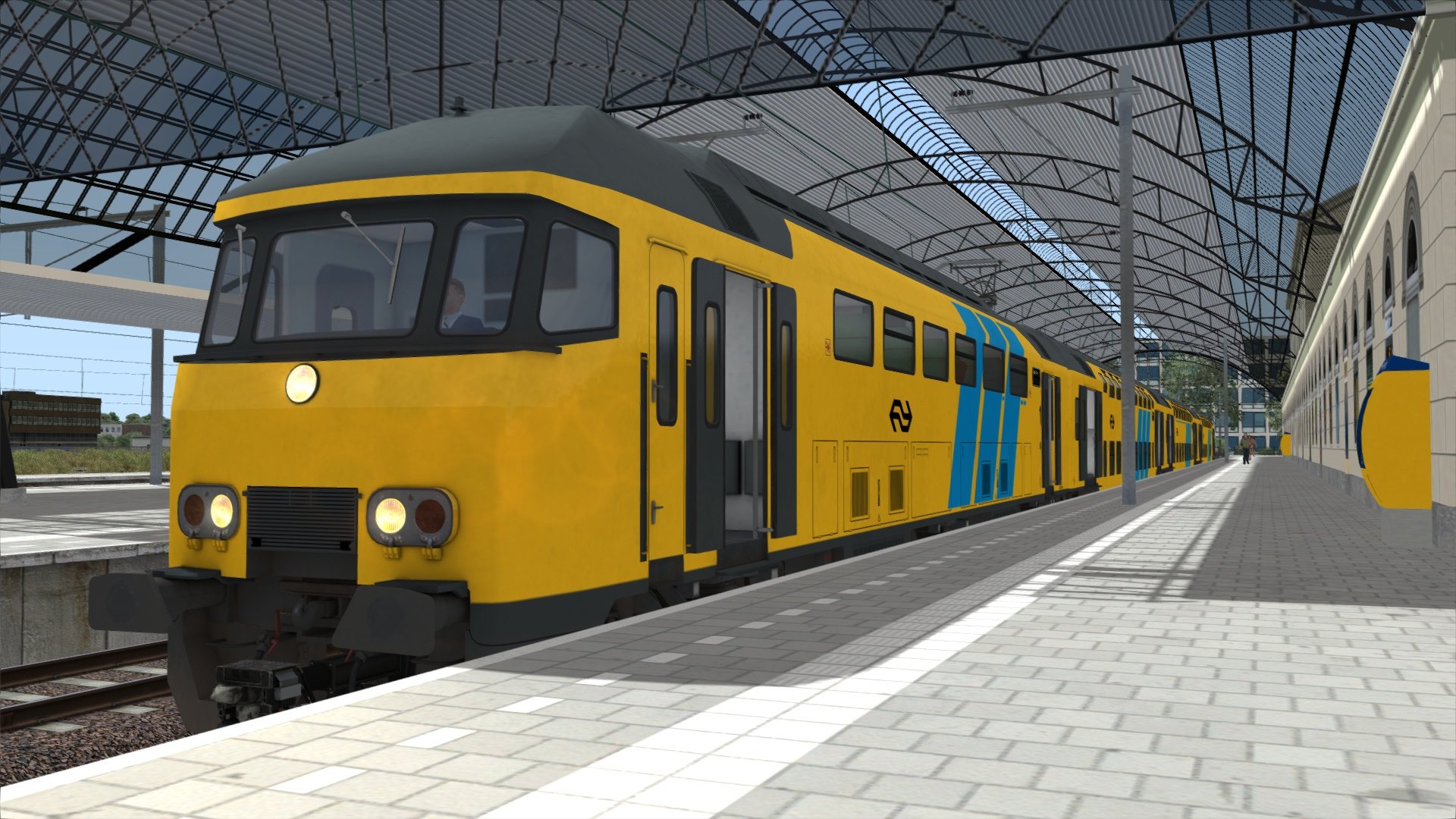
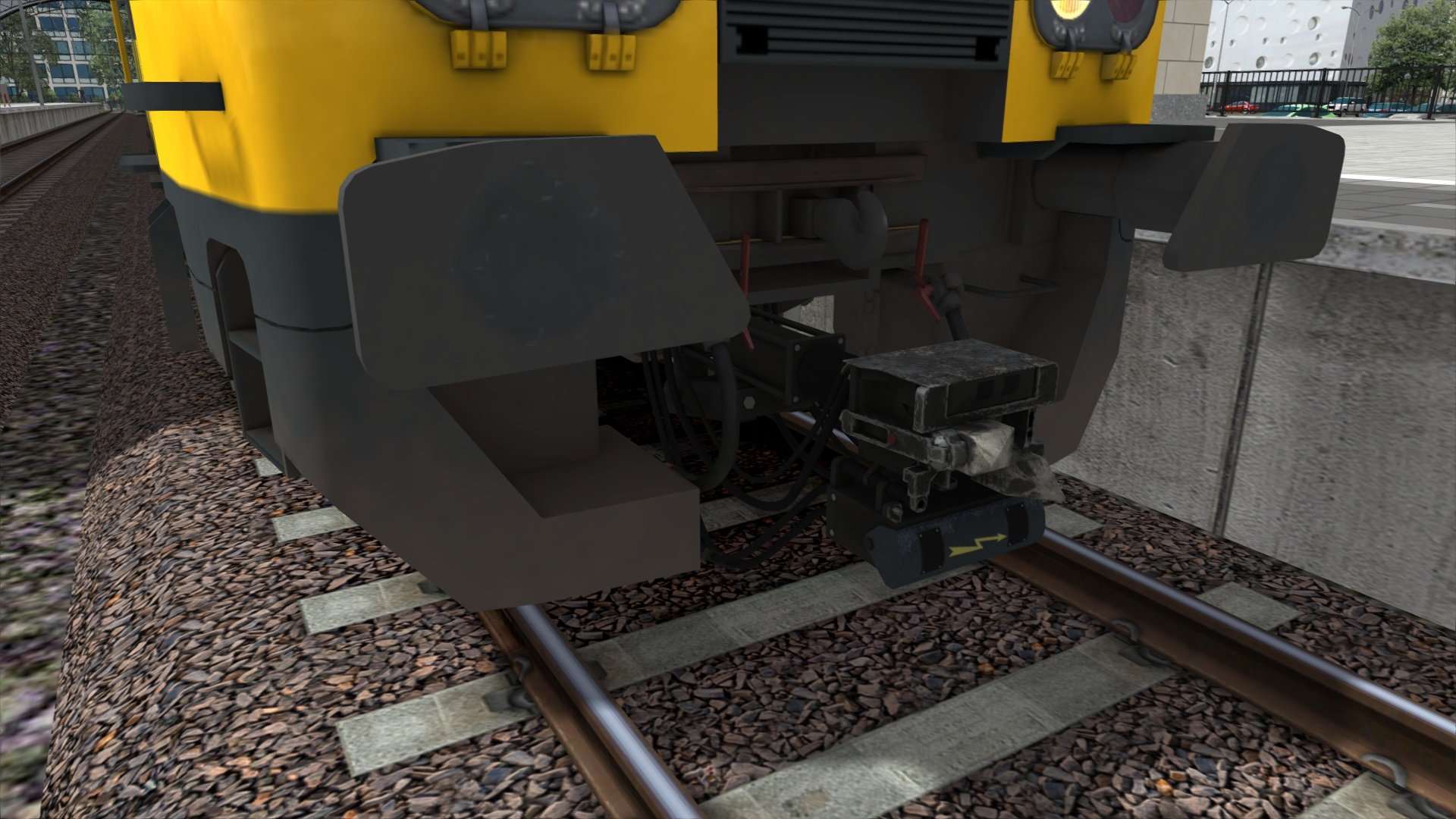
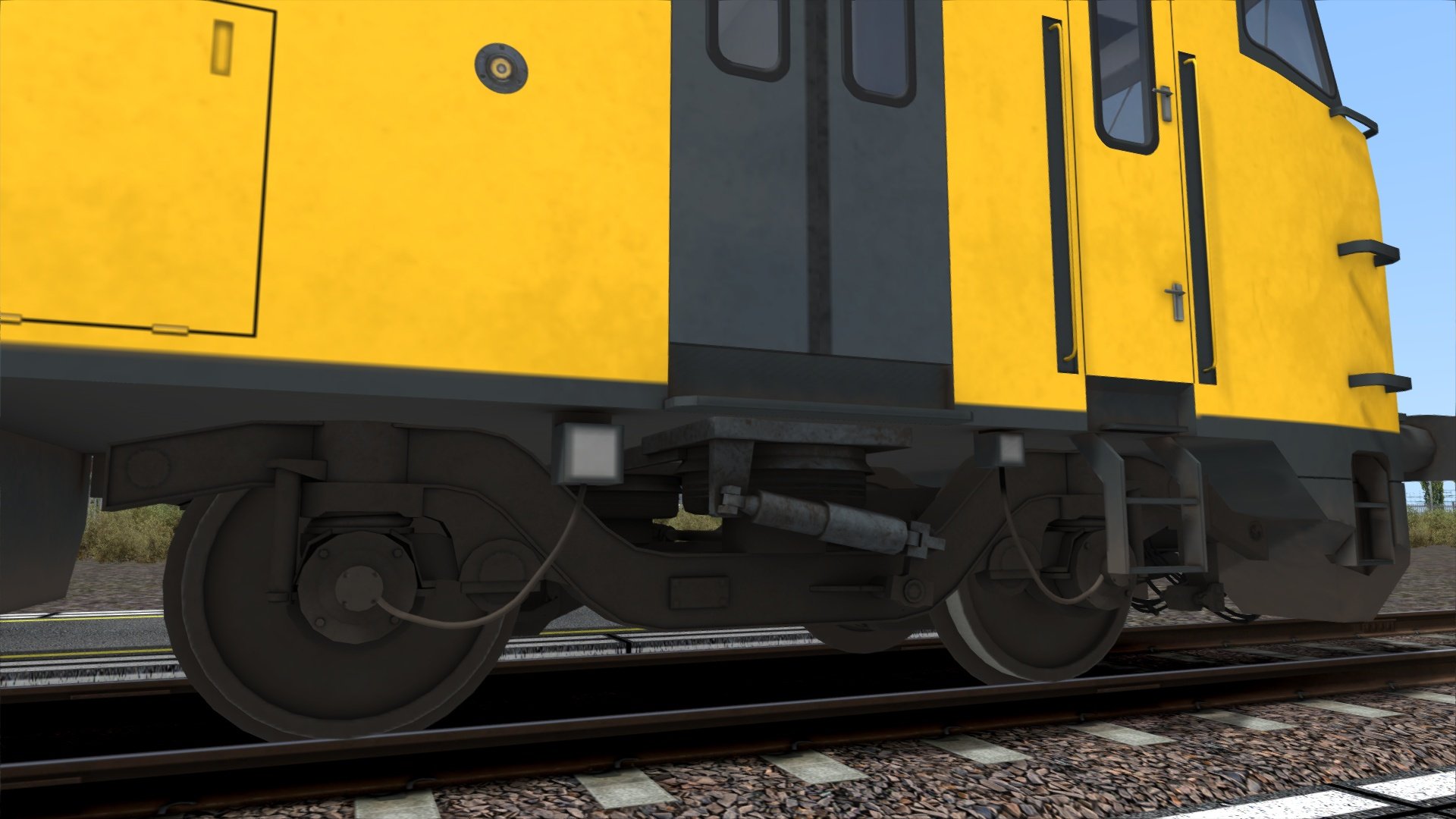
Nederlandse Spoorwegen DD-AR passagierstrein voor Train Simulator. Een reproductie van het DD-AR dubbeldekker elektrisch treinstel dat overal op het netwerk van de Nederlandse Spoorwegen te zien is.
Kenmerken
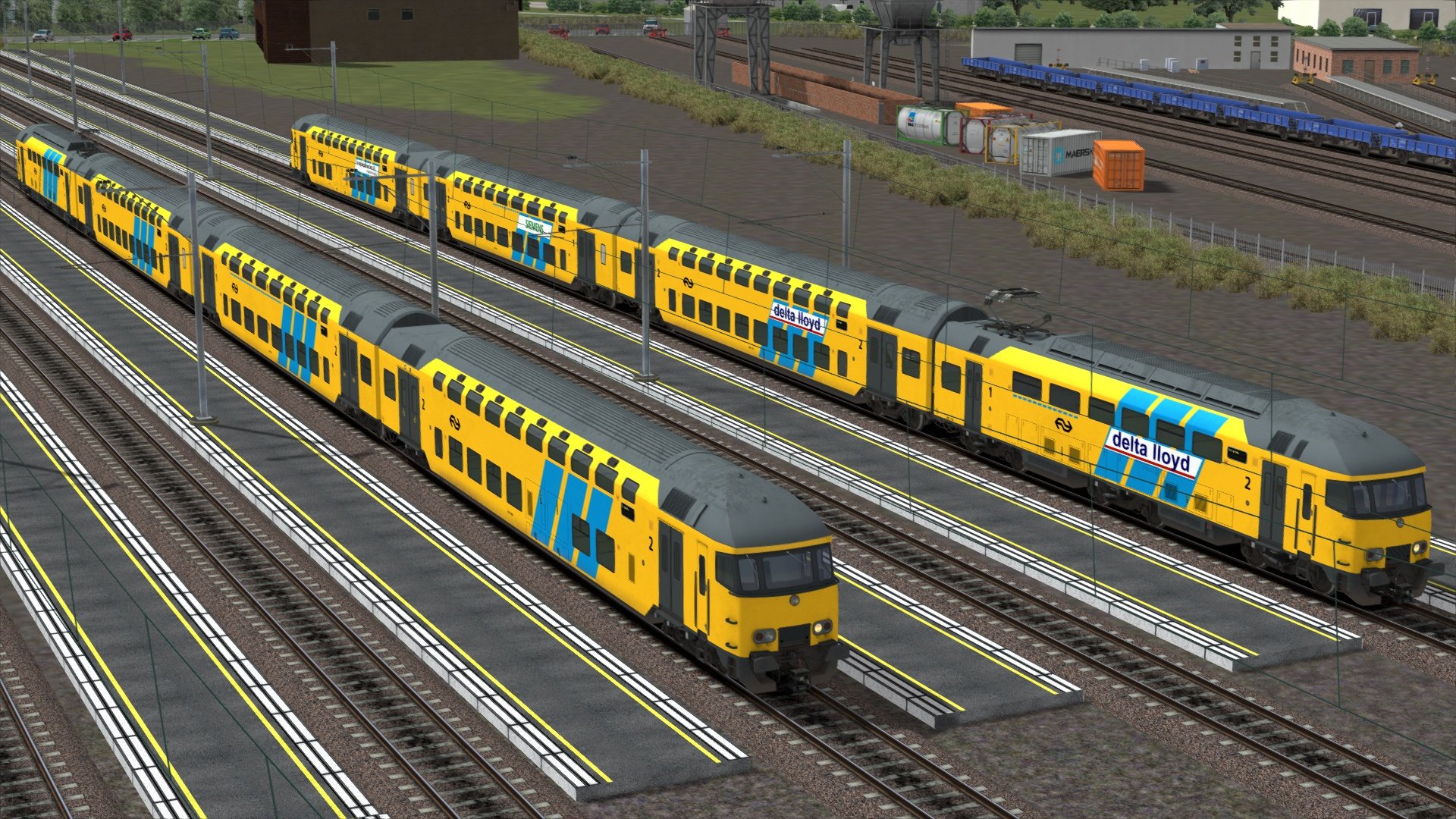
Klassieke NS-kleurstelling met en zonder reclamebanners
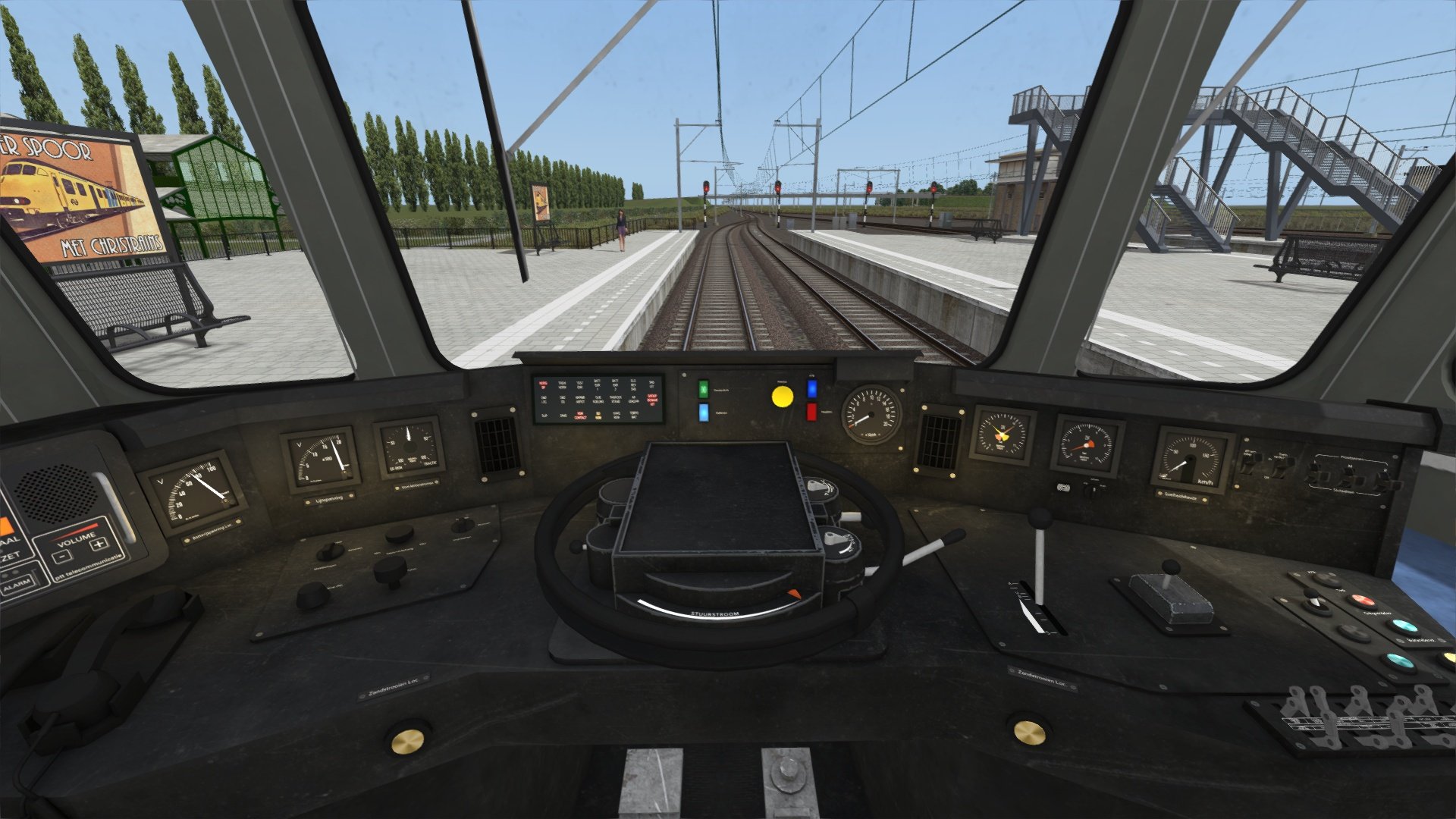
Werkende motorwagen en stuurstand (mABk en Bvk)
Gedetailleerde cabineweergaven (mABk en Bvk)
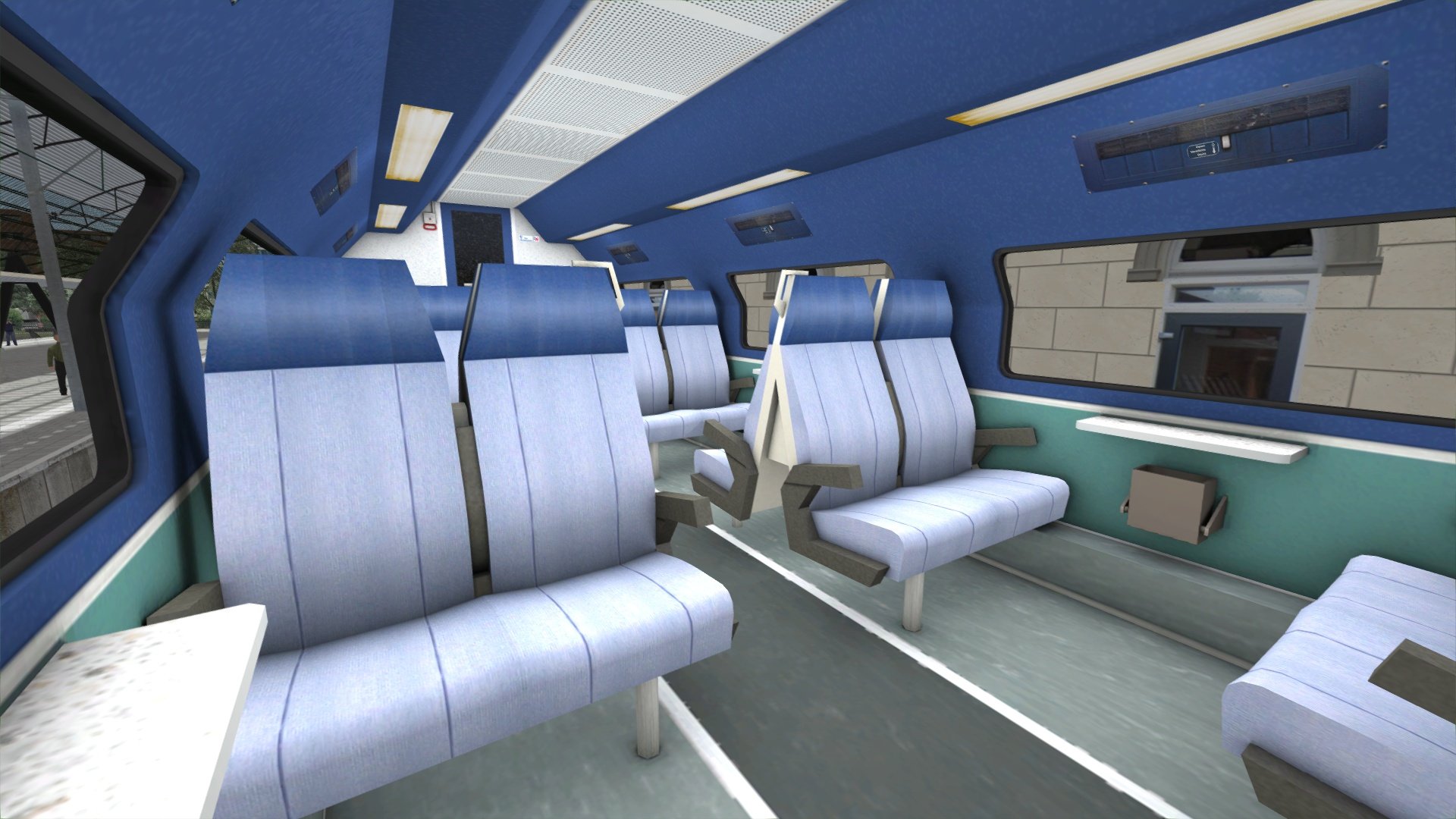
1e en 2e klas reizigersrijtuigen (ABv en Bv)
1e klas reizigersweergave (ABv)
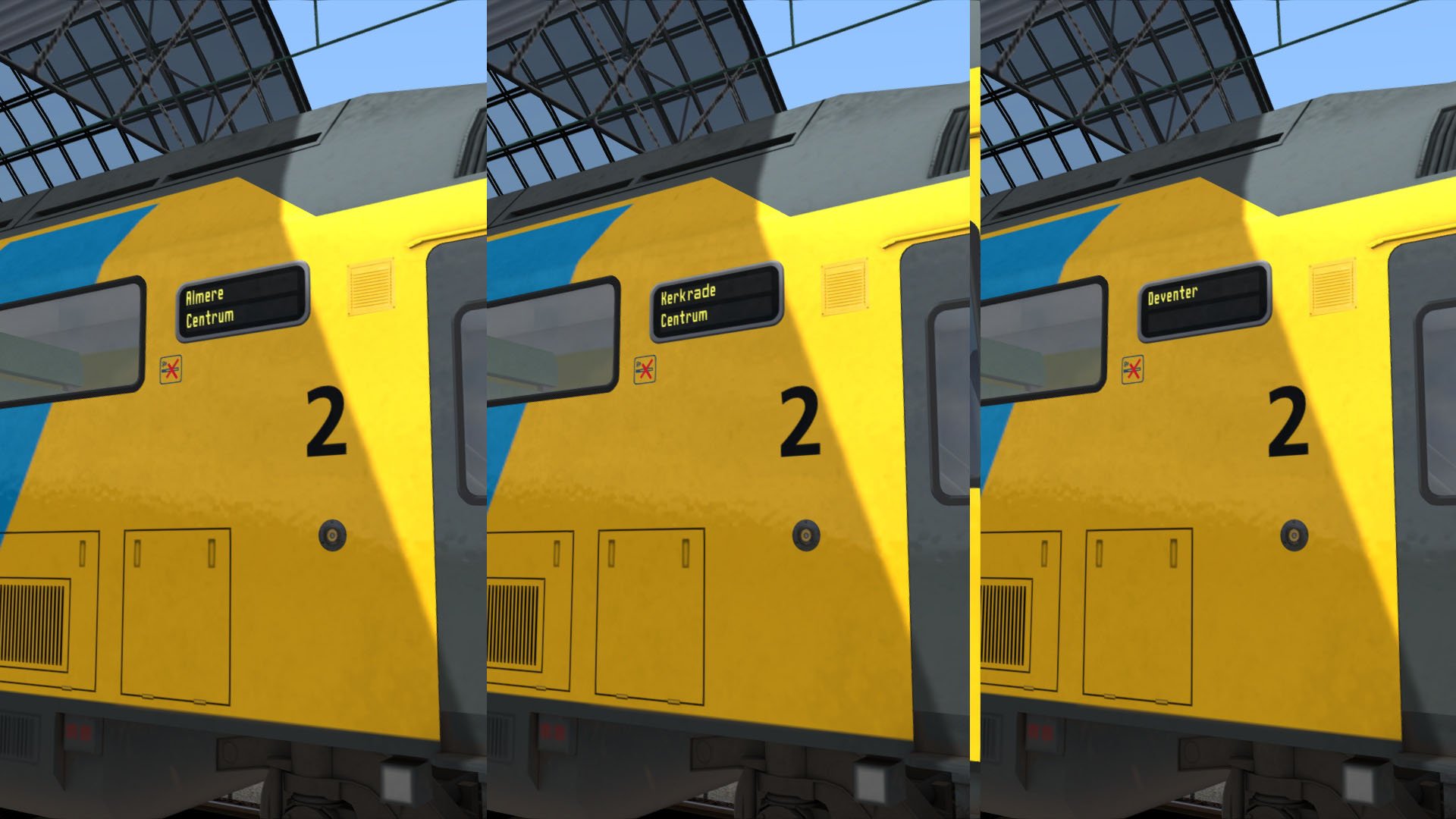
Maakt gebruik van slimme scripting voor cabineverlichting, aangepaste bedieningselementen, cruise control, treeplanken, bestemmingsborden en meer
ATB-EG (treinbeveiligingssysteem) en Dodeman (veiligheidsbewaking) emulatie
Cruise control
Dynamische automatische nummering
Te gebruiken in eigen scenario’s en compatibel met QuickDrive
De handleidingen zijn in het Nederlands en andere talen beschikbaar en zijn te vinden in:
C:\Program Files (x86)\Steam\steamapps\common\RailWorks\Manuals\ChrisTrains
(let op: de stationsletter van uw harde schijf kan verschillen).Gratis updates voor het leven
Vereisten & Aanbevelingen
Besturingssysteem: Windows® 10 of 11 (32/64-bit)
Windows 7 wordt niet ondersteund.
Spel: Dovetail Games Train Simulator Classic
Voor elektrische treinstellen: minimaal één route met bovenleiding vereist
Bediening: 'Expert' control mode
(Instructies voor het uitschakelen van 'Simple Controls' zijn inbegrepen.)
Aanbevolen: Dynamic Lighting aan
Belangrijke opmerking:
Dit product werkt niet in Train Simulator 2012–2019 of in Train Simulator World (dit is een ander spel).
Uitgever: ChrisTrains
Talen: Duits / Engels / Nederlands
Huidige versie: klik hier
Productbeoordelingen
Er zijn geen reviews te tonen.